

This article has been machine-translated from Chinese. The translation may contain inaccuracies or awkward phrasing. If in doubt, please refer to the original Chinese version.
It’s been almost a month since I switched from Cursor to Claude Code on the 9th of last month. I’m a moderate user, and I’ve easily gotten my money’s worth ($20 a month). Now Cursor mainly handles tab completion, while Claude Code is better for everything else in daily use. Below are screenshots from ccusage.
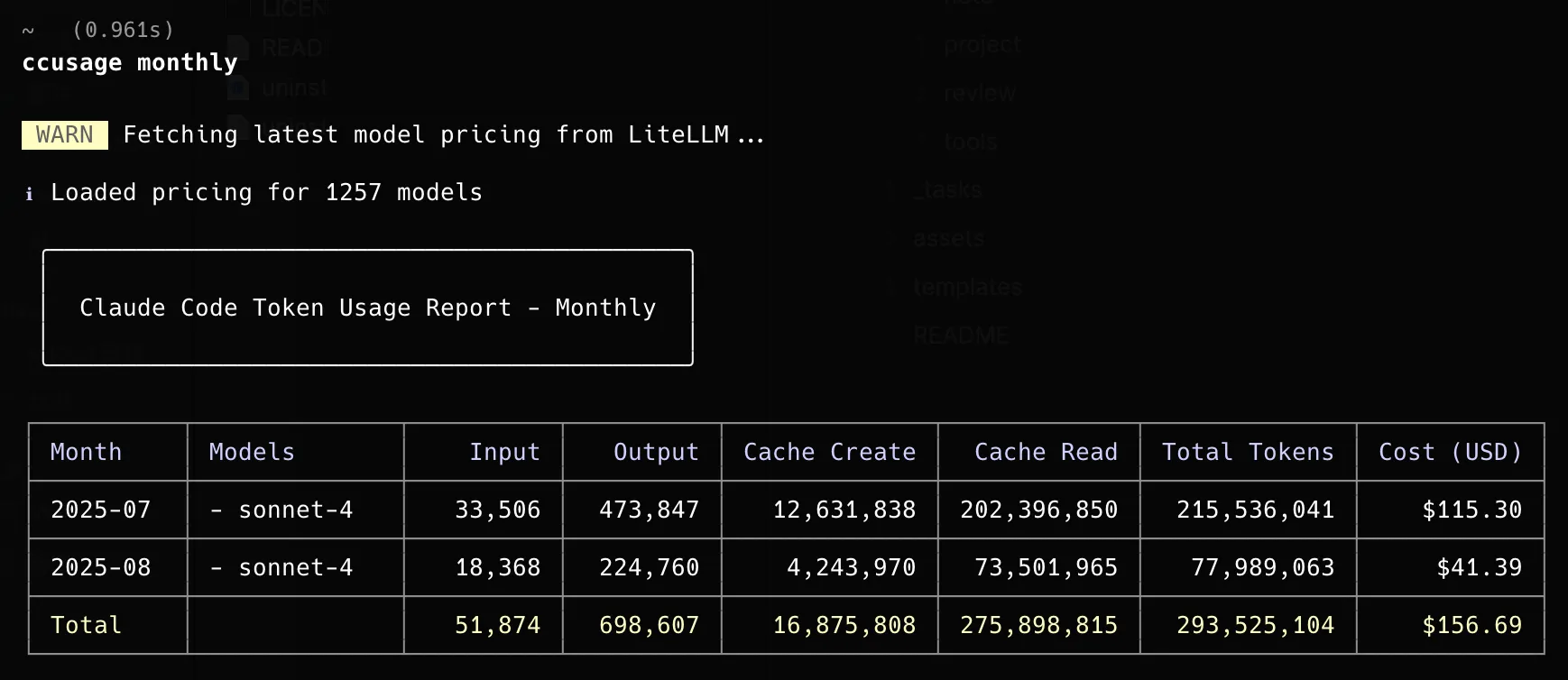
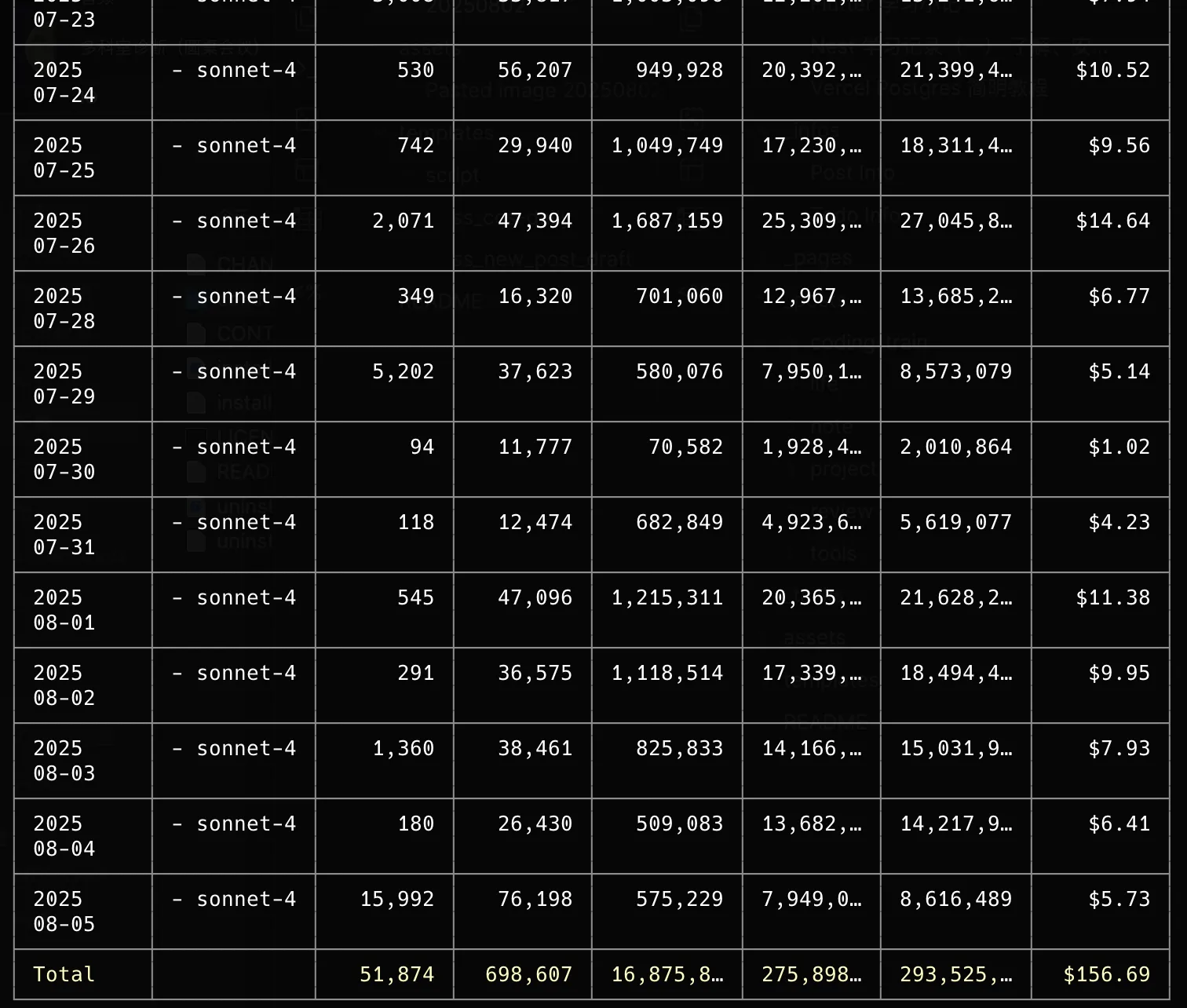
It feels absolutely amazing. Using Sonnet 4 is more than enough for me — it’s very smart. Below are some tips and tricks from my daily usage. This post doesn’t have much hard-hitting content, just some personal notes.
Tips and Tricks
I picked up a few useful tidbits from articles like 6 Weeks of Claude Code - Puzzmo Blog and How I use Claude Code (+ my best tips), along with some things I’d seen before.
- Set up notification sounds via hooks in Claude’s
settings.json(Claude Code Settings - Anthropic). For example, have it say “Task complete” when finished, or “Awaiting permission” when requesting access. See Hooks Reference - Anthropic for details.
{
  "hooks": {
    "Notification": [
      {
        "matcher": "",
        "hooks": [
          {
            "type": "command",
            "command": "afplay /System/Library/Sounds/Funk.aiff && say \\\"等待许可\\"
          }
        ]
      }
    ],
    "Stop": [
      {
        "matcher": "",
        "hooks": [
          {
            "type": "command",
            "command": "afplay /System/Library/Sounds/Glass.aiff && say \\\"任务完成\\"
          }
        ]
      }
    ]
  }
}- Use permissions settings to auto-approve commonly used commands, so you don’t have to allow them every time — and you don’t need to worry about
--dangerously-skip-permissionsdeleting things.
{
  "permissions": {
    "allow": ["Bash(grep:*)", "Bash(find:*)", "Bash(mkdir:*)", "Bash(rg:*)", "Bash(ls:*)", "Bash(awk:*)"]
  }
}-
Since it’s a terminal interface, pasting images from the clipboard with Command + V doesn’t work. Use Control + V instead (on Mac).
-
Create custom slash commands. Claude Code makes it very easy to add custom slash commands. To add a command, just create a
.claude/commandsfolder and add the command name as a file with a.mdextension. Write them in natural language, and you can use the$ARGUMENTSstring to pass arguments into the prompt. The official tutorial is at Slash Commands - Anthropic.
# Create personal commands
mkdir -p ~/.claude/commands
echo "Review this code for security vulnerabilities:" > ~/.claude/commands/security-review.md
You can use GitHub - brennercruvinel/CCPlugins to add a set of commands. It provides some key commands, such as:
/cleanproject,/commit,/format,/scaffold,/test,/implement,/refactorfor one-click cleanup, initialization, and refactoring.- Code quality and security:
/review,/security-scan,/predict-issues, etc., for code reviews, automatic detection and fixing of security vulnerabilities, import issues, TODOs, etc. - Advanced analysis:
/understand,/explain-like-senior,/make-it-prettyfor global architecture analysis, senior-level code explanations, and readability optimization. - Session and project management:
/session-start,/session-end,/docs,/todos-to-issues,/undofor session persistence, ensuring the development process is traceable and rollback-friendly.
Using Claude Code for Rapid Project Learning
The official docs also provide example workflows at Common Workflows - Anthropic.
For example, I wanted to study this project GitHub - webclipper/web-clipper and have AI analyze it for me, learning the essence of how it scrapes web content.
First, clone the project locally, run /init to generate the CLAUDE.md project documentation, then I’d ask:
I need to study this project, understand its overall structure and how it captures web content. Output a series of md documents in the docs folder for my reference.
> @CLAUDE.md @src/ @docs/ I need to study this project, understand its overall structure and how it captures web content. Output a series of md documents in the docs folder for my reference.
⎿  Read CLAUDE.md (65 lines)
  ⎿  Listed directory src/
  ⎿  Listed directory docs/
  ⎿  ⧉ Selected 46 lines from CLAUDE.md in Cursor

⏺ I'll help you learn the web-clipper project by creating comprehensive documentation. Let me first create a todo list to plan this learning
  documentation task.
...

⏺ Update Todos
  ⎿  ☒ Create docs directory structure
     ☒ Analyze and document overall project architecture
     ☒ Document web content capture mechanism
     ☒ Document service plugin system
     ☒ Document extension system
     ☒ Document IPC communication system
     ☒ Document build and deployment process

⏺ Write(docs/README.md)
  ⎿  Wrote 137 lines to docs/README.md
     # Web-Clipper 学习文档
     本文档集合详细解析了 Web-Clipper 项目的整体架构、核心机制和技术实现,旨在帮助开发者深入理解这个通用网页剪藏浏览器扩展的设计思路和实现细节。
     ## 文档目录
     ### 1. [项目架构概览](./01-architecture-overview.md)
     - 项目简介和核心架构模式
     - 主要目录结构和技术栈
     - 三个主要入口点的职责分工
     … +127 lines (ctrl+r to expand)

⏺ 我已经完成了对 Web-Clipper 项目的全面学习和文档化工作。在 docs/ 文件夹下创建了完整的学习文档系列:

  已创建的文档

  1. docs/01-architecture-overview.md - 整体架构和技术栈
  2. docs/02-content-capture-mechanism.md - 网页内容抓取的核心实现
  3. docs/03-service-plugin-system.md - 25+ 服务的插件架构
  4. docs/04-extension-system.md - 6 种扩展的生命周期管理
  5. docs/05-ipc-communication-system.md - 进程间通信架构
  6. docs/06-build-and-deployment.md - Webpack 构建配置
  7. docs/README.md - 学习指南和文档导航

  核心发现

  Web-Clipper 是一个设计精良的浏览器扩展项目,具有以下突出特点:

  - 高度模块化: 通过动态服务发现和扩展系统实现了极高的可扩展性
  - 类型安全: 完整的 TypeScript 支持确保代码质量
  - 架构先进: 使用依赖注入、通道化通信等现代架构模式
  - 多浏览器支持: 一套代码适配 Chrome 和 Firefox
  - 用户体验优秀: 智能内容提取、国际化支持、灵活配置

  这些文档将帮助你深入理解项目的设计思路和实现细节,是学习浏览器扩展开发和大型 TypeScript 项目架构的优秀参考资料。
The series of markdown files generated this way are not only highly accurate but also easy to learn from. Highly recommended.
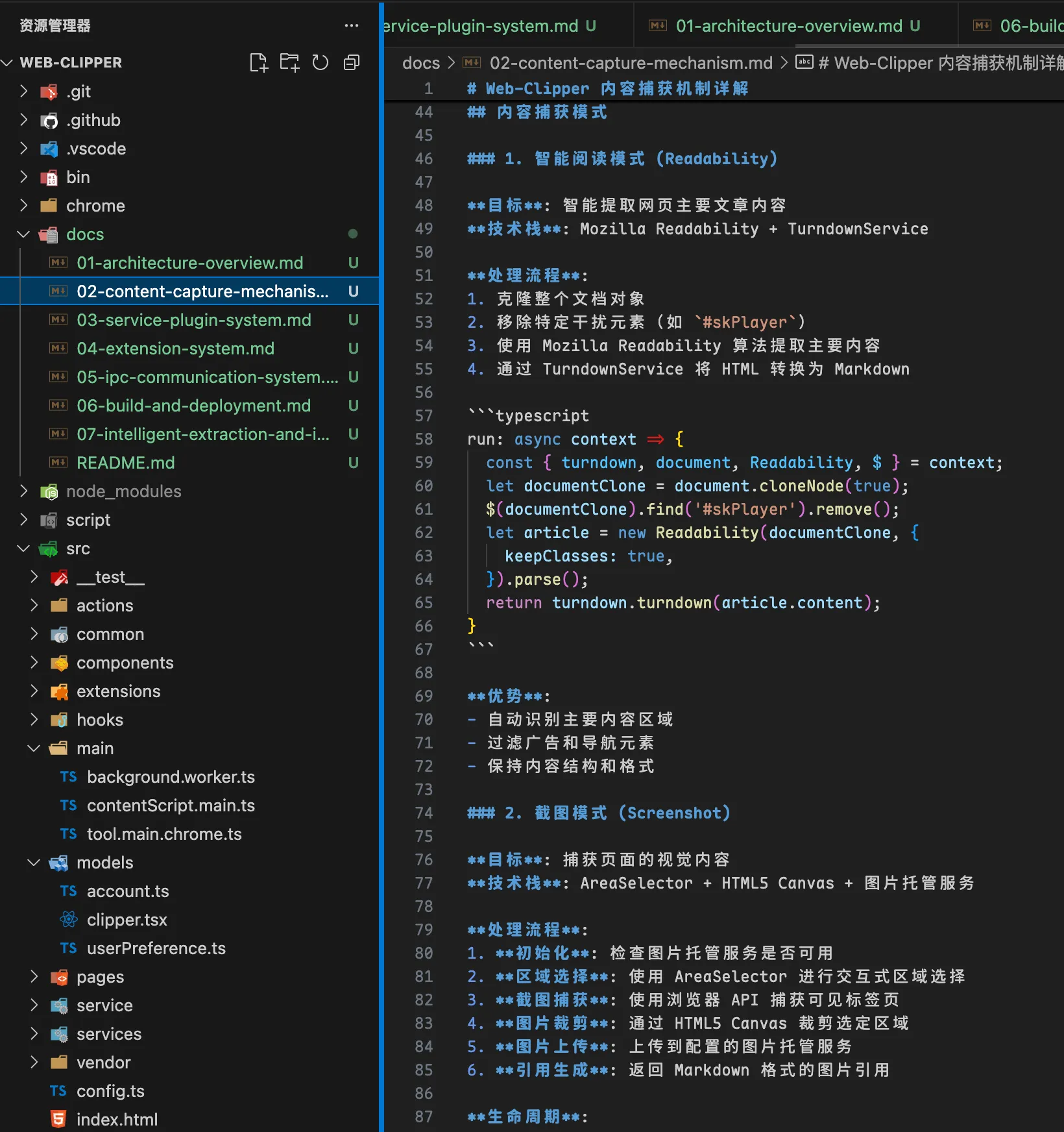
Following up with deeper questions about the core implementation:
> Continue with a deeper analysis of the intelligent extraction implementation and how images are extracted. Also output as markdown files.
  ⎿  Found 10 new diagnostic issues in 1 file (ctrl-r to expand)
⏺ I will deeply analyze the intelligent extraction and image extraction implementation mechanisms and create detailed documentation.
⏺ Update Todos
  ⎿  ☐ Analyze intelligent content extraction mechanism
     ☐ Analyze image extraction and processing
     ☐ Document Readability algorithm implementation
     ☐ Document screenshot capture and processing
     ☐ Document image hosting integration
     ☐ Create comprehensive analysis document
Result: It also produced a clear and accurate analysis of about 577 lines of markdown. If you want to go deeper into a specific part, the same approach applies.
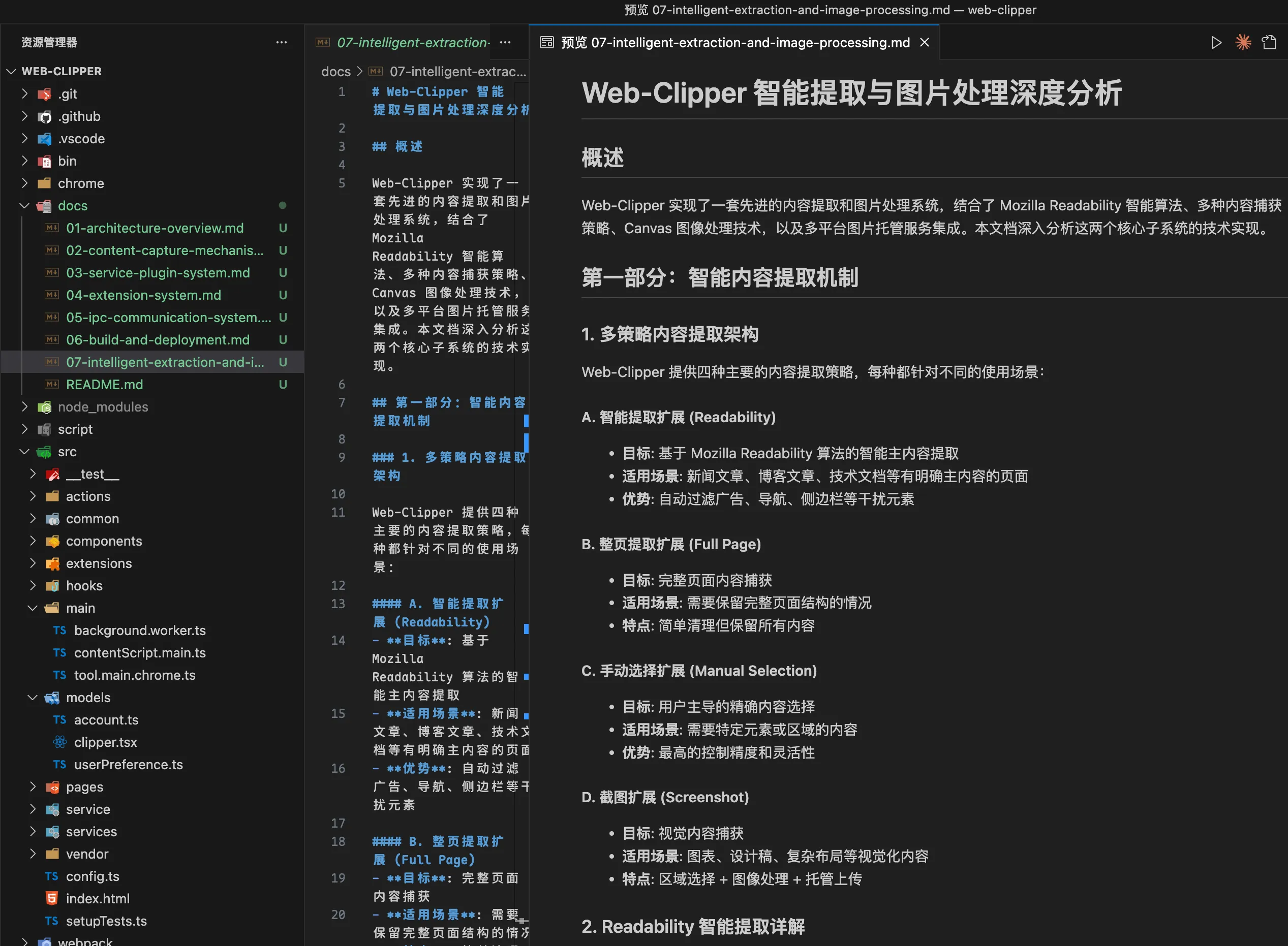
I also tried the /understand command from CCPlugin mentioned above, but in practice the quality wasn’t as good as the approach above. It seems more suited for assisting during the development process.
Recommended Reading
- 6 Weeks of Claude Code - Puzzmo Blog
- How I use Claude Code (+ my best tips)
- This one is really worth reading carefully on the topic of context: AI Coding Methodology: Systematic Practice from Exploration to Mastery | 静かな森
- First Look at Context Engineering | 静かな森
喜欢的话,留下你的评论吧~